
Table of Contents
Universal Search turns a data-rich platform into an instant query tool, removing the need to navigate through menus individually. Across full research sessions, quick searches accumulate to save significant time while discovering hidden exposure across multiple asset classes. It provides immediate access to stocks, indices, ETFs, mutual funds, and features from a single unified search bar.
Most stock research tools split their data across a dozen different menus. Stocks live in one section, mutual funds in another, screeners somewhere else entirely, and sector data behind yet another tab. Finding one specific thing usually means knowing exactly where it lives first.
StockEdge replaced that with a single search bar that reaches across the whole platform. Type a company name, a sector, a fund, or even the name of a tool you want to use, and Universal Search for stocks finds it directly, without you needing to remember which menu it sits under. For anyone comparing the best stock research tools in India, this kind of unified access is quickly becoming a baseline expectation rather than a bonus feature. This article walks through what Universal Search actually covers, how to use it for faster research, and a few practical ways to build it into a daily workflow.
What Is Universal Search in StockEdge?
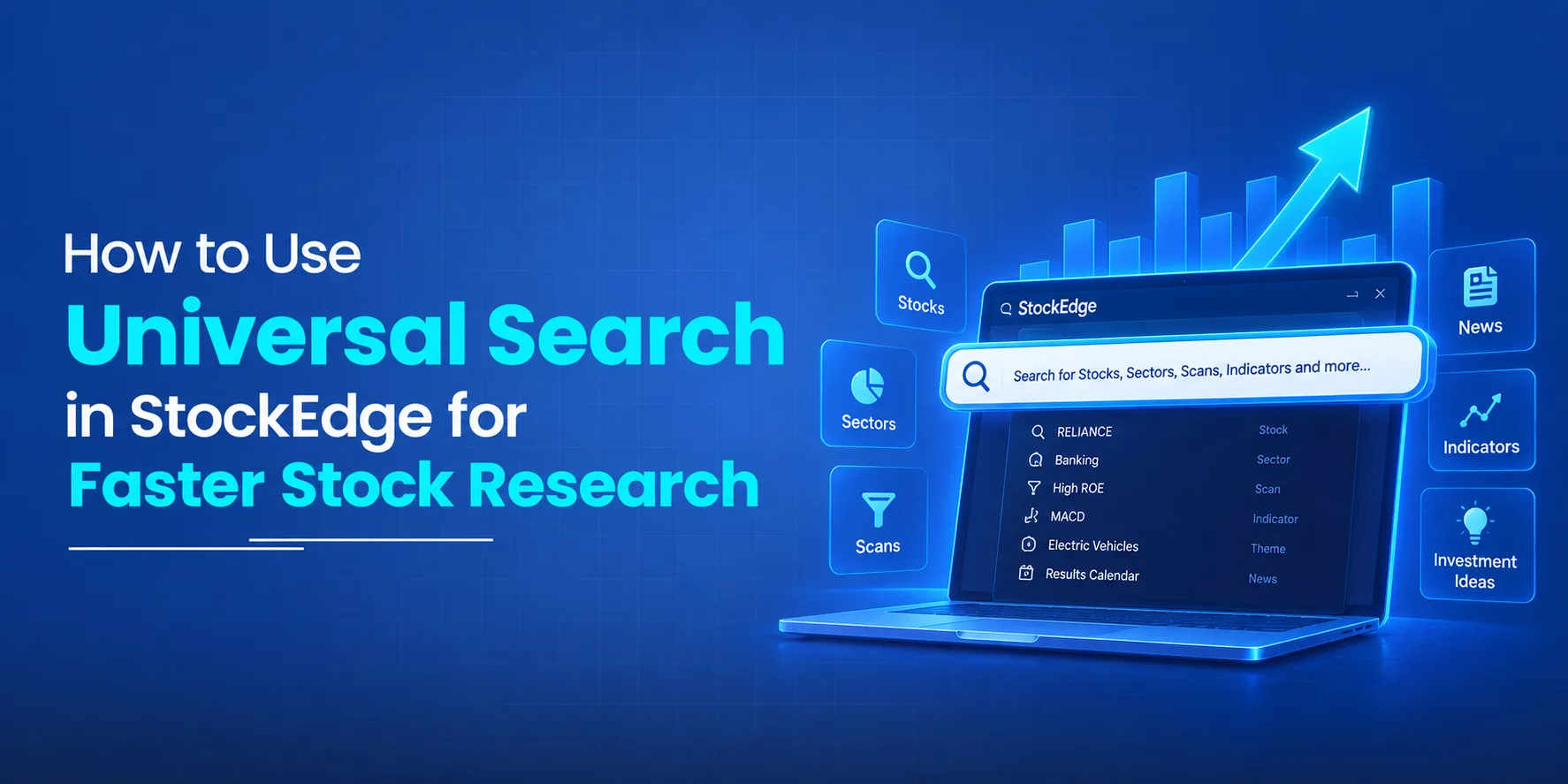
Universal Search is StockEdge’s single search bar that returns results across the platform instead of being limited to one section. A query can match a listed company, an index, a mutual fund, an ETF, an IPO, a saved scan, or a specific feature inside the app, all from the same search box. As the StockEdge universal search tool matures, it has quietly become the fastest way to move between these categories without breaking your research flow.
The practical effect is that a user does not need to first decide whether something counts as a “stock” question or a “mutual fund” question before searching for it. The search bar figures that out and returns matching results across categories, leaving the user to just pick the right one.
Why StockEdge Moved to a Single Unified Search Bar
Earlier versions of StockEdge, like most research platforms, kept different data types behind separate menus. A user comfortable with the stocks section still had to go hunting through a different menu to reach mutual fund data or a saved scan, even if they knew exactly what they were looking for. Checking a company, then its sector page, then a related mutual fund often meant backing out of one menu and opening another each time.
StockEdge introduced a unified search bar to remove that friction. Instead of navigating menu by menu, a user could simply type what they wanted, whether that was a company, a sector, a fund, or a tool, and reach it directly. Over subsequent updates, the scope of what Universal Search covers has kept expanding. It has grown from its original coverage of stocks, indices, sectors and industries, mutual funds and StockEdge scans to also include ETFs and IPOs, reflecting how much of the platform now sits behind that one search box.
How to Access Universal Search in StockEdge
The search bar is available on both the StockEdge mobile app and the web platform, typically placed at the top of the screen so it stays accessible no matter which section a user is currently browsing. Tapping or clicking into it opens the search interface, where typing a query returns live results organised by category, such as All, Stocks, Indices, ETFs, IPOs, MFs and Scans, so results can be viewed together or filtered down to just one type. This is where Universal Search for stocks genuinely saves time, since a beginner does not need to already know which tab holds the answer before typing.
What You Can Search For Using Universal Search
Stocks and Indices
Typing a company name, a partial name, or a ticker brings up matching listed stocks directly, along with major indices like Nifty or Sensex-linked benchmarks. There’s no need to open a separate stocks section first. If the difference between a broad benchmark and a narrower one is unclear, a quick primer such as this comparison of the Nifty Total Market Index against the Nifty 50 is a useful companion read before searching for either.
Sectors and Industries
Universal Search also recognises sector and industry names, so typing something like a sector name can surface the relevant sector or industry page directly, useful when a research session starts with a theme rather than a specific company.
Mutual Funds
Searching a fund house or scheme name returns matching mutual fund results, which is useful when a user wants to check a specific scheme without navigating through the mutual funds section separately. Readers unfamiliar with how a platform organises this data can look at how the mutual fund tracking section is laid out before running their first search.
Scans and Screeners
Typing the name of a saved scan or a type of screener brings up matching results under the Scans category, letting a user jump straight into a specific screen instead of browsing through the full scans library to find it. Anyone treating StockEdge as a stock screener India users can rely on will find this shortcut particularly useful once they have a handful of go-to scans saved. For a walkthrough of what these categories actually filter on, a breakdown like how the screener works is worth a read, and pairing that with a primer on common technical indicators helps make sense of what each filter is actually measuring.
App Features and Tools
Beyond instruments, Universal Search also recognises the names of tools and features inside the app. Typing the name of a specific feature or workflow can surface it directly, which is useful for anyone who knows what they want to use but doesn’t remember exactly which section it lives in. It’s a small detail, but it’s part of why the StockEdge universal search tool feels less like a search box and more like a shortcut bar for the whole app.
How to Use Universal Search for Faster Stock Research (Step by Step)
Step 1: Start With a Company, Sector, or Theme
Begin with whatever is on your mind, a specific company, a sector you’re watching, or a broader theme. Universal Search doesn’t require you to know the exact category first, which matters most at the start of a research session, when you often don’t know yet whether the thing you’re looking for is a stock, a fund, or a sector page. If you are still working out how to find stocks to invest in in the first place, a structured beginner course can help you build the vocabulary a search like this assumes you already have.
Step 2: Jump Directly to the Relevant Data Instead of Navigating Menus
Once results appear, tapping the right one takes you straight to that stock, fund, or sector’s dedicated page, skipping the menu navigation that used to sit in between. This is the core value of the StockEdge universal search tool: fewer taps between a question and an answer.
Step 3: Cross-Check Related Instruments From the Same Search
A single search often returns more than one type of result worth checking. Searching a well-known financial group name, for instance, can surface the listed operating company under Stocks, related ETFs under the ETFs tab, and the group’s mutual fund schemes under MFs, all from that one query, which makes it easy to see how many different instruments are tied to the same underlying name. This matters because a bank, its asset management arm, and its insurance business are usually separate listed or structured entities with different earnings drivers, even when they share a name.
Step 4: Save Time by Searching for Features Directly
If you already know which tool you want, whether that’s a specific scan or another feature inside the app, typing its name directly is usually faster than navigating to it through menus, particularly on mobile where menu navigation takes more taps. This is especially true for anyone who leans on scans regularly and just wants to reopen a familiar screener without retracing the full menu path.
Universal Search vs Browsing Through Menus: Why It Saves Research Time
Menu-based navigation requires knowing which section a piece of data lives in before you can find it. That’s a reasonable assumption for a small app, but StockEdge covers stocks, indices, ETFs, IPOs, mutual funds and a large scans library, and expecting every user to remember exactly where each one sits adds friction that has nothing to do with the actual research being done. This is one of the reasons Universal Search for stocks has become a differentiator among platforms built as a stock screener India investors turn to for daily research.
Universal Search removes that step. Instead of drilling down through nested menus, a query returns matching results across every category at once. For a quick check, that difference can mean a few seconds instead of several taps or clicks, and across a full research session covering multiple companies, sectors and funds, those seconds add up. The saving compounds further once a session involves comparing several names back to back, since each comparison would otherwise mean re-entering the same menu path from scratch.
Practical Ways to Use Universal Search in Your Stock Research Workflow
One practical habit is using Universal Search to check overlapping exposure to the same brand. Many large Indian business groups operate a listed bank or company, an asset management arm, an insurance business, and sometimes ETFs built around their own funds, all as separate, independently listed or structured entities. Searching just the group name in the StockEdge universal search tool can surface the operating company under Stocks, group-linked ETFs, and the asset manager’s mutual fund schemes under MFs in one go.
That makes it easier to notice if a portfolio already holds a mutual fund managed by a group while also holding shares of a related listed company from the same group, an overlap that’s easy to miss when each instrument is checked separately through its own menu.
Another practical use is starting research from a sector or theme rather than a company name. If a session begins with a broad idea, such as a sector that’s been in the news, searching the sector name directly opens the relevant sector page, from which the individual constituent stocks can be explored, rather than first guessing which stock within that theme to look up.
A third use is jumping straight from an idea to a specific screener without browsing the full scans list. If you already have a scan you use regularly, searching its name directly is faster than reopening the scans library and scrolling to find it each time, and the same applies to any other feature whose name you already know. This habit alone is one of the simpler ways to get more out of any stock screener India platform offers, since it turns a library of hundreds of screens into a handful of one-search shortcuts.
Things to Keep in Mind While Using Universal Search
Search results depend on matching names and tickers closely, so an unusual abbreviation or a misspelled company name may not surface the intended result on the first try. Trying the fuller company name or a well-known ticker usually resolves this.
Universal Search helps you find instruments and features faster, but it doesn’t replace the research itself. Finding a company, fund, or scan quickly is only the starting point. What you do with the data once you’re there is what actually determines the quality of the research.
Since Universal Search spans multiple categories at once, results for a common name can span stocks, ETFs and mutual funds simultaneously. It’s worth glancing at which tab a result actually falls under before assuming it’s the specific instrument you were looking for, particularly when a group name maps to several different listed entities.
Feature coverage inside StockEdge scans and Universal Search more broadly has changed across app versions, expanding from its original scope to include categories like ETFs and IPOs more recently. If a specific category doesn’t appear to return a result, it’s worth checking the current app version, since coverage has been added incrementally over time rather than all at once.
Conclusion
Universal Search turns a platform with a lot of underlying data, stocks, indices, ETFs, IPOs, mutual funds, scans, and features, into something that can be searched with a single query instead of navigated menu by menu. The time saved on any one search is small, but across a full research session covering several companies, sectors and funds, that adds up to a noticeably faster workflow.
Used well, it also does more than save time: searching a single brand name across categories can reveal overlapping exposure that would otherwise stay hidden across separate menus, which is part of why long-time users, as reflected in platform reviews, tend to describe the search bar as one of the features they reach for most.
Universal Search for stocks on the StockEdge universal search tool is available now on the StockEdge app and web platform. Open it alongside a sector or scan you already track and see how much of your usual navigation it replaces.
Suggested Read: StockEdge Version 14.6: Stock AI, PE Cloud and Sector-Level Fundamentals
FAQs
1. What can I search for using StockEdge’s Universal Search?
Universal Search covers stocks, indices, ETFs, IPOs, mutual funds, saved scans, and specific app features and tools, all from the same search bar, organised into categories like All, Stocks, Indices, ETFs, IPOs, MFs, and Scans.
2. Is Universal Search available on both the StockEdge app and web platform?
Yes, Universal Search is available on both the StockEdge mobile app and the web platform, positioned to stay accessible regardless of which section you’re currently browsing.
3. Can I search for a specific scan or tool instead of browsing menus?
Yes. Typing the name of a saved scan, a type of screener, or another feature inside the app, including any of the StockEdge scans you use often, will surface it directly under the relevant category, without needing to navigate to it through the menus first.
4. Does Universal Search work for mutual funds and indices as well as stocks?
Yes. Universal Search covers mutual fund schemes and major indices alongside individual stocks, ETFs, and IPOs, all searchable from the same bar.